

Smart WooCommerce Checkout Optimization: 10 Proven Ways to Reduce Drop-offs
Written by Md Ferdous Hassan Alin. Posted in Mini Cart, WooCommerce, WordPress No Comments
Introduction
WooCommerce checkout optimization is one of the most direct ways to increase revenue from your existing traffic. You do not need more visitors — you need more of your current visitors to complete their purchases.
The average cart abandonment rate across e-commerce stores sits around 70%, according to data from the Baymard Institute. That means roughly 7 out of 10 shoppers who add items to their cart leave without buying. A large portion of those exits happen at the checkout stage — not because shoppers changed their minds about the product, but because the WooCommerce checkout process gave them a reason to stop.
This guide covers 10 specific WooCommerce checkout optimization methods that address the most common reasons for checkout drop-offs. Each section includes steps you can act on immediately.
1. Enable Guest Checkout to Remove Barriers
One of the fastest WooCommerce checkout optimization fixes is enabling guest checkout. Many store owners force account registration before purchase. This is a major source of drop-offs.
Shoppers who are buying for the first time do not want to create an account. They want to pay and move on. Requiring registration adds steps, adds friction, and gives people a reason to leave.
WooCommerce has a built-in guest checkout option. Go to WooCommerce → Settings → Accounts & Privacy and check “Allow customers to place orders without an account.” This single change can reduce checkout drop-offs noticeably for first-time buyers.
You can still offer account creation after the purchase is complete. At that point, the transaction is done and there is no risk of losing the sale. WooCommerce checkout optimization at this step costs nothing and takes under a minute to implement.
2. Reduce the Number of Form Fields
WooCommerce checkout optimization means removing everything that is not necessary. The default WooCommerce checkout form asks for a lot of information — first name, last name, company name, two address lines, city, state, zip code, country, phone, and email. That is a long form.
Not every field is required for every business. If you sell digital products, you do not need a shipping address. If you do not ship internationally, you do not need the country field to be editable. If phone numbers are not used in your order fulfillment, remove that field.
You can remove or reorder WooCommerce checkout fields using the Checkout Field Editor plugin or a small custom function in your theme’s functions.php file. Fewer fields mean faster form completion and fewer reasons for shoppers to stop halfway.
WooCommerce checkout UX research consistently shows that shorter forms improve completion rates. The checkout form should ask for only what you actually need.
3. Switch to a One-Page Checkout
Standard WooCommerce checkout is a multi-step process: cart page, checkout page, order review, payment. Each page load is an opportunity for a shopper to leave.
WooCommerce one-page checkout setup puts all of this on a single page. Shoppers can enter their details, choose their shipping method, and pay without leaving the page or waiting for redirects. This is a well-documented approach to reducing WooCommerce checkout drop-offs.
The WooCommerce One Page Checkout plugin handles this without custom development. For stores using Elementor or Divi, there are page builder-compatible options as well. The goal is to reduce the number of steps between “add to cart” and “order confirmed.”
4. Speed Up the WooCommerce Checkout Page
WooCommerce checkout page speed directly affects completion rates. A checkout page that loads slowly gives shoppers time to reconsider. According to Google’s research on page speed and conversions, delays of even one second can reduce conversions.
To improve WooCommerce checkout page speed, start with these steps:
- Use a fast, lightweight WooCommerce-compatible theme (Storefront, Astra, or Kadence are commonly recommended).
- Enable WooCommerce’s built-in AJAX cart and checkout updates.
- Cache pages using a plugin like WP Rocket or W3 Total Cache, but exclude checkout and cart pages from full-page caching (these need to be dynamic).
- Use a CDN (Cloudflare or BunnyCDN) to serve static assets faster.
- Reduce the number of active plugins — each plugin adds load time.
WooCommerce checkout optimization is not only about the form — it includes how fast the entire page loads and responds to user input.
5. Add Multiple Payment Options
If your WooCommerce store only accepts one payment method, you are excluding customers who prefer another. WooCommerce checkout optimization includes offering the payment options your customers actually use.
Credit and debit cards are standard. Beyond that, options like PayPal, Stripe, Apple Pay, Google Pay, and Buy Now Pay Later (BNPL) services like Klarna or Afterpay are increasingly expected by shoppers. Reduce cart abandonment WooCommerce by meeting customers at their preferred payment method.
WooCommerce supports multiple payment gateways through plugins. Stripe for WooCommerce, PayPal Payments, and WooPayments (formerly WooCommerce Payments) are the most common. Install the ones that match where your customers are located and what they prefer.
One important note: do not add every payment option available. Too many choices on the checkout page creates confusion. Stick to 3–5 relevant options.
6. Display Clear Trust Signals
Shoppers enter sensitive information during checkout — credit card numbers, home addresses, and email addresses. If your WooCommerce checkout page does not look trustworthy, they will not complete the process.
Trust signals on the checkout page include:
- SSL certificate: Your store must use HTTPS. WooCommerce will warn you if it does not, but double-check that the padlock shows in the browser.
- Security badges: Logos from Stripe, PayPal, or Verified by Visa reassure shoppers that payment is handled securely.
- Money-back guarantee: A short statement about your return policy, placed near the payment button, reduces hesitation.
- Customer reviews: Showing a star rating or a short testimonial near the checkout adds social proof at the moment of decision.
These WooCommerce checkout optimization elements address the trust barrier, which is one of the top reasons shoppers abandon checkout before completing a purchase.
7. Show an Order Summary in the Checkout
Shoppers sometimes lose track of what they are buying during the checkout process, especially on mobile. If they cannot see their cart items on the checkout page, they may navigate back to the cart to check — and not return.
A persistent order summary on the WooCommerce checkout page, visible on both desktop and mobile, solves this. It shows the shopper exactly what they are paying for, the quantity, the price, and the total — including shipping and taxes.
WooCommerce displays a simple order review section by default, but many themes collapse it or push it below the fold. Make sure the order summary is visible without scrolling. This is a WooCommerce checkout UX detail that reduces back-navigation and abandonment.
8. Set Up Cart Abandonment Recovery
Even with WooCommerce checkout optimization in place, some drop-offs are unavoidable. Shoppers get distracted. They leave to compare prices. They step away from their device. Cart abandonment recovery lets you bring those shoppers back.
The most effective recovery method is an automated email sequence. When a shopper adds items to their cart and leaves without buying, a recovery email sent within 1–3 hours can bring a meaningful percentage back.
CartFlows, Retainful, and WooCommerce Recover Abandoned Cart are plugins that handle this. They track when a cart is abandoned, capture the email address (when available), and send timed recovery emails.
For WooCommerce checkout optimization on the recovery side, use these email principles:
- Send the first email within 1 hour of abandonment.
- Include the exact items left in the cart.
- Offer help, not pressure — ask if there was an issue with the checkout process.
- A second email 24 hours later can include a discount code if your margins allow it.
How to reduce WooCommerce checkout drop-offs after they happen is just as important as preventing them in the first place.
9. Optimize the Checkout Experience for Mobile
A large portion of WooCommerce store traffic comes from mobile devices. If the checkout page is not fully optimized for small screens, mobile shoppers will drop off at a much higher rate.
WooCommerce checkout form optimization for mobile includes:
- Form fields that trigger the correct keyboard (numeric keyboard for phone numbers and zip codes, email keyboard for the email field).
- Buttons that are large enough to tap without zooming in.
- A layout that stacks fields vertically rather than placing them side by side.
- Auto-fill support so that browsers can complete address and payment fields automatically.
- Payment options like Apple Pay and Google Pay that skip manual card entry entirely.
Test your WooCommerce checkout page on actual mobile devices, not just browser simulators. Common issues — form fields that are too small, buttons that are hard to reach, and text that is difficult to read — often only appear on real hardware.
WooCommerce checkout optimization for mobile is not a secondary concern. It is a primary one for most stores.
10. Use Exit-Intent Popups to Catch Shoppers Before They Leave
An exit-intent popup is a prompt that appears when a visitor’s mouse cursor moves toward the browser’s close button or address bar — a signal that they are about to leave. On mobile, this is triggered by scrolling up quickly or switching tabs.
Exit-intent popups on the WooCommerce checkout page can offer something that makes the shopper reconsider: a discount code, free shipping, or a reminder about a money-back guarantee.
OptinMonster, Poptin, and ConvertPro all integrate with WooCommerce and support exit-intent triggers. Keep the popup message short and specific. “Wait — here’s 10% off your order” is more effective than a generic message. Include a clear close button so shoppers who are not interested can dismiss it without frustration.
Best WooCommerce checkout optimization plugins often include exit-intent features as part of a larger conversion toolkit, so check what your existing tools offer before adding a new plugin.
Keyword Summary in Context
Throughout this guide, the following keywords have been used in context:
- WooCommerce checkout optimization — primary keyword, used throughout all 10 sections
- Reduce cart abandonment WooCommerce — addressed in sections 1, 5, and 8
- WooCommerce checkout page speed — covered in section 4
- WooCommerce guest checkout — covered in section 1
- WooCommerce checkout UX — addressed in sections 2 and 7
- WooCommerce payment options — covered in section 5
- How to reduce WooCommerce checkout drop-offs — addressed in sections 8 and throughout
- Best WooCommerce checkout optimization plugins — mentioned in sections 3, 8, and 10
- WooCommerce one-page checkout setup — covered in section 3
- How to speed up WooCommerce checkout page — covered in section 4
- WooCommerce checkout form optimization tips — covered in sections 2, 7, and 9
FAQ: WooCommerce Checkout Optimization
The most common reasons are a forced account registration requirement, a long checkout form, unexpected shipping costs shown at the end, and a checkout page that loads slowly. Fixing these four issues addresses the majority of avoidable drop-offs.
No. You can still collect an email address during guest checkout and use it for order confirmation emails, shipping updates, and optional account creation after the purchase. Guest checkout does not reduce your ability to communicate — it only removes the forced registration step before payment.
The official WooCommerce One Page Checkout plugin is the most straightforward option. CartFlows is a more advanced alternative that includes funnel building and upsell features alongside the one-page checkout functionality.
Check your current payment data in WooCommerce reports to see which gateways are used most. You can also look at where your customers are located — payment preferences vary by country. PayPal is widely used in the US and UK; SEPA transfers are common in Europe; local payment options matter in markets like Southeast Asia.
Yes. The checkout page has specific requirements that other pages do not. Full-page caching, which speeds up most pages, must be disabled on the checkout and cart pages because they contain dynamic content (cart totals, user data). WooCommerce checkout page speed optimization focuses on server response time, lean code, and AJAX updates rather than caching.
The first recovery email is most effective when sent within 30 to 60 minutes of the cart being abandoned. Waiting longer reduces the chance of recovery. A second email sent 24 hours later, and a third sent 72 hours later with an optional incentive, form a standard three-email recovery sequence.
They can work, but only when the offer is specific and relevant. A generic “Don’t leave!” popup rarely converts. An offer tied to the cart — such as free shipping on the items the shopper already has — performs better. Keep the popup simple and make it easy to close.
Yes. Mobile shoppers face different friction points than desktop users. Card entry on mobile is slower and more error-prone, which is why payment options like Apple Pay and Google Pay have a larger impact on mobile conversion than on desktop. Form field size, button placement, and keyboard type also require mobile-specific attention.
Yes. For returning customers, address auto-fill, saved payment methods, and faster checkout flows reduce friction. WooCommerce supports saved addresses and payment tokens for logged-in customers. Encouraging account creation after the first purchase (rather than before) gives returning customers a faster experience on subsequent orders.
The industry average abandonment rate is around 70%. Stores that implement structured WooCommerce checkout optimization — guest checkout, shorter forms, faster pages, and multiple payment methods — often bring this down to 55–60%. A 10-percentage-point reduction in abandonment can represent a significant revenue increase depending on your order volume.
Bonus Tool: How Mini Cart Drawer for WooCommerce Helps Reduce Checkout Drop-offs
Most WooCommerce checkout optimization strategies focus on what happens after a shopper clicks “Proceed to Checkout.” But a significant number of drop-offs happen before that click — when shoppers lose track of their cart, forget what they added, or navigate away to check their items and never come back.
The Mini Cart Drawer for WooCommerce by Appsbd addresses this earlier stage of the checkout process. It is a WooCommerce plugin that adds a compact, slide-out cart drawer to your store, giving shoppers instant access to their cart contents from any page — without redirecting them to the cart page.
Here is how it connects directly to WooCommerce checkout optimization:
Keeps shoppers on the page. The default WooCommerce behavior requires shoppers to navigate to a separate cart page to review items before checkout. Every navigation is a potential exit. The Mini Cart Drawer lets shoppers view cart contents, update quantities, and remove items from a side drawer that opens on the current page. This removes a step from the path to checkout and reduces the chance of losing a shopper mid-browse.
Shows an order summary before checkout. One of the top reasons shoppers abandon checkout is uncertainty about what they are buying or what the total will be. The Mini Cart Drawer shows product details, item counts, subtotals, and — depending on configuration — tax information and available coupons directly in the drawer. Shoppers see exactly what they are about to pay for before they reach the checkout page.
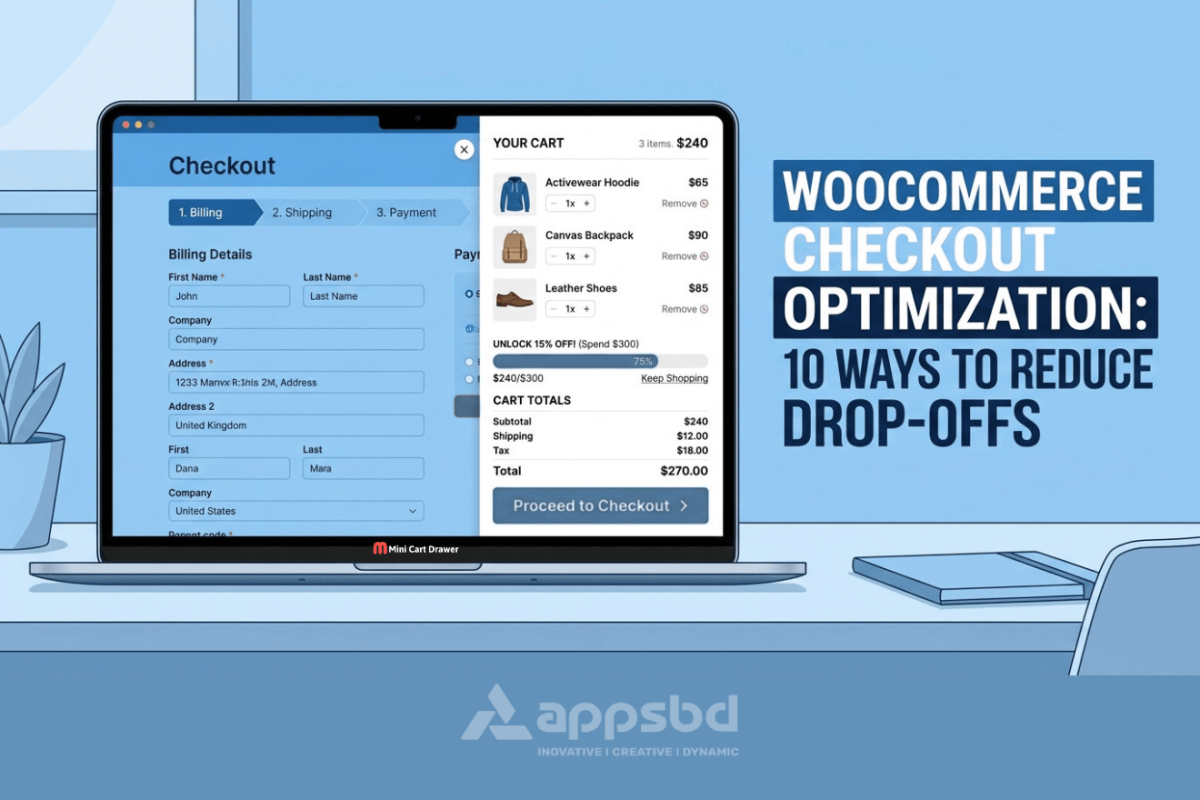
Includes a dynamic discount and progress bar module. The plugin has a built-in Sales Booster module that lets you set spend-based discount rules, such as “Spend $20 more to get $5 off.” A visual progress bar in the cart drawer shows shoppers how close they are to unlocking the discount. This is a direct way to increase average order value and reduce abandonment at the same time — shoppers who are close to a discount threshold are more likely to add another item than to abandon the cart.
Works on all devices. The Mini Cart Drawer is fully responsive. On mobile, where checkout drop-offs are highest, the drawer opens as a full-width panel that is easy to read and interact with. This supports the mobile WooCommerce checkout UX improvements described in section 9 of this guide.
Can be added to the navigation menu. The plugin includes an option to place the cart icon directly in the website’s navigation menu. This makes the cart accessible from every page of the store, not just pages where a cart widget is manually placed. Shoppers who want to check their cart at any point can do so without interrupting their browsing.
Supports shortcodes for flexible placement. The plugin supports shortcodes, so the mini cart can be embedded on any page — landing pages, product pages, or custom layouts — without requiring a widget area.
Customizable to match your store design. The Mini Cart Drawer includes a Live Customizer option that lets you adjust colors, icons, button styles, and layout to match your store’s branding. A cart drawer that looks out of place reduces trust; one that matches the store design feels like a natural part of the shopping experience.
The plugin is available in a free version through the WordPress plugin directory, with a Pro version (starting at $39/year for a single site) that unlocks premium support and the full feature set. A 30-day money-back guarantee is included.
For stores focused on WooCommerce checkout optimization, the Mini Cart Drawer is a practical addition to the pre-checkout phase — keeping shoppers informed, reducing unnecessary page navigation, and using discount mechanics to move more carts toward completion.
Conclusion
WooCommerce checkout optimization is not a one-time task. It is an ongoing process of identifying where shoppers stop and removing the friction that causes them to leave. The 10 methods in this guide — from enabling guest checkout and reducing form fields to speeding up the page and recovering abandoned carts — address the most common and measurable causes of checkout drop-offs.
Start with the changes that cost nothing: enable guest checkout, remove unnecessary form fields, and make sure your checkout page loads quickly on mobile. Then layer in plugins for one-page checkout, cart abandonment recovery, and exit-intent offers as your store grows.
Each improvement compounds. A faster page keeps more shoppers from leaving. Guest checkout removes the first barrier. Fewer form fields speed up completion. Multiple payment options ensure shoppers can pay the way they want. Together, these WooCommerce checkout optimization steps give more of your existing visitors a reason to complete their purchase.
Subscribe
To get news about new releases, Updates, Blog Post, Deals and Discounts