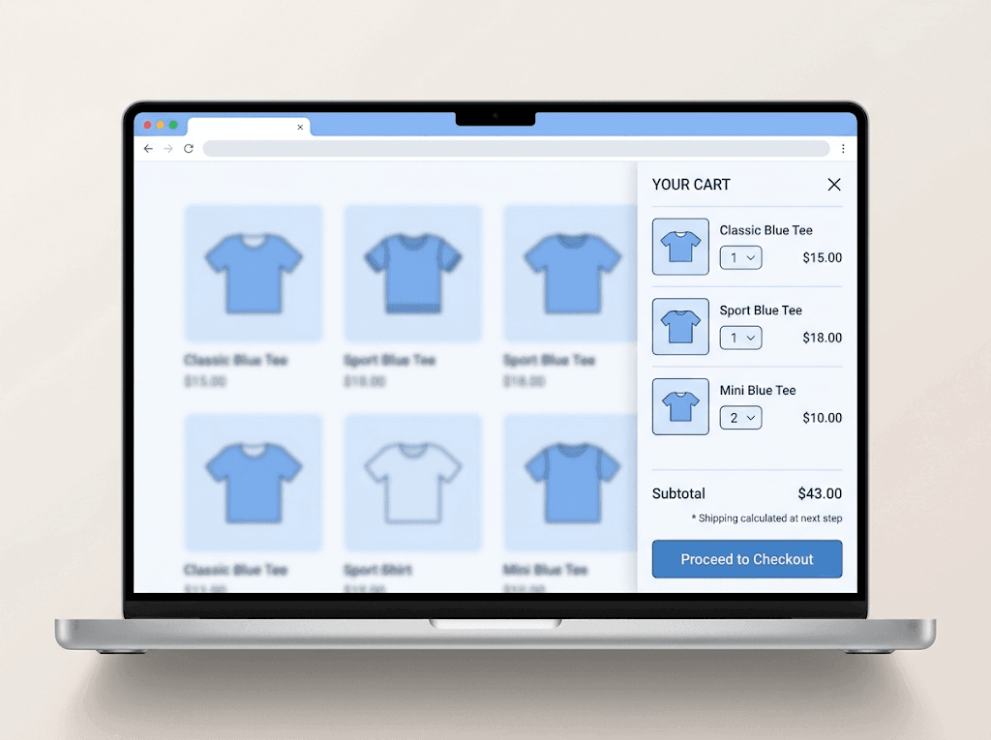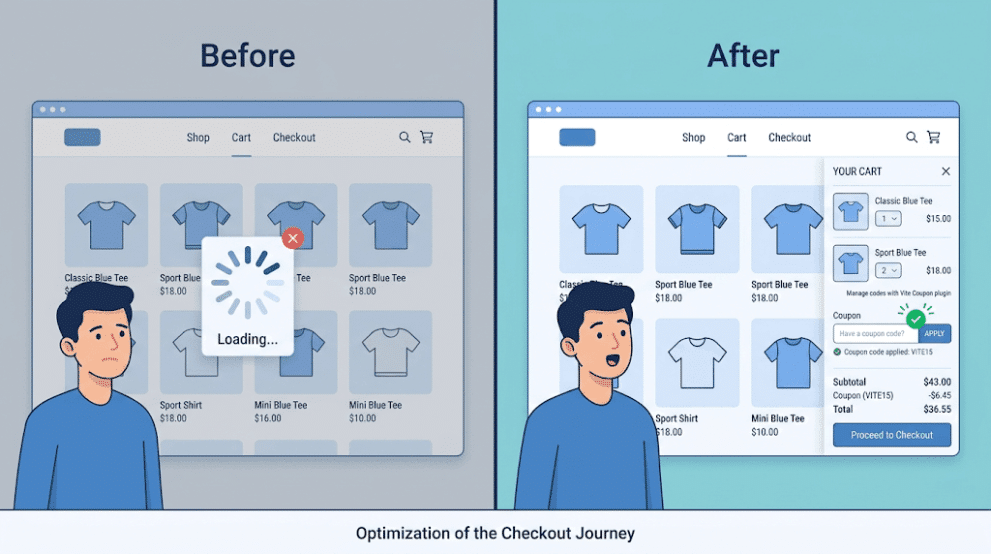

How to Improve the WooCommerce Cart Experience and Reduce Checkout Friction
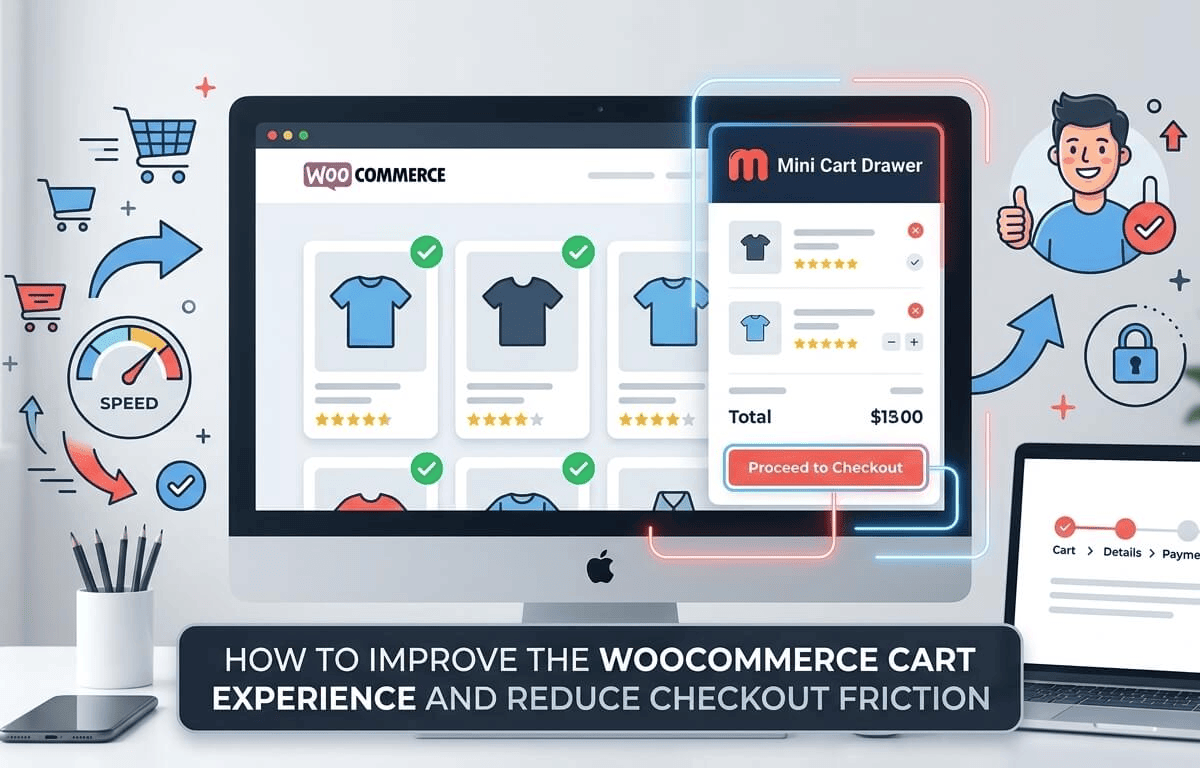
Written by Towhidul Islam. Posted in Uncategorized No Comments
Every WooCommerce store owner eventually runs into the same problem: visitors add products to their cart, then leave without paying. The product pages work, the traffic is real, but the sale never completes. In most cases, the reason is not the product. It is the WooCommerce cart experience itself — how easy or hard it is for a shopper to review their cart, understand the total cost, and move to checkout without friction.
This guide looks at why cart abandonment happens, what actually causes checkout friction in WooCommerce, and the practical steps store owners can take to build a better WooCommerce cart experience. It also covers where a plugin-based solution makes sense, and where it does not.
Why the WooCommerce Cart Experience Matters
The cart page and the mini-cart (the small preview that usually appears when a product is added) are the last stop before checkout. If a shopper struggles here — if they cannot see what they added, cannot update quantities easily, or get pulled away from their shopping flow every time they check their cart — they are more likely to leave.
According to the Baymard Institute, which tracks checkout abandonment across dozens of studies, the average online cart abandonment rate is above 70%. That means roughly seven out of ten shoppers who add an item to their cart never complete the purchase. A meaningful share of that abandonment is unavoidable — people browsing without buying intent — but a large portion comes from friction that store owners can actually fix: confusing checkout forms, unexpected costs, forced account creation, and a cart experience that interrupts rather than supports the shopping flow.
For a WooCommerce store, this matters because WooCommerce’s default cart and checkout pages are functional but generic. They were built to work across every kind of store, not to be optimized for any one of them. Improving the WooCommerce cart experience usually means closing the specific gaps that the default setup leaves open.
Common Causes of Checkout Friction in WooCommerce
Before fixing anything, it helps to understand where friction actually comes from. Based on documented checkout usability research and common WooCommerce store patterns, the most frequent causes are:
1. Unexpected Costs at Checkout
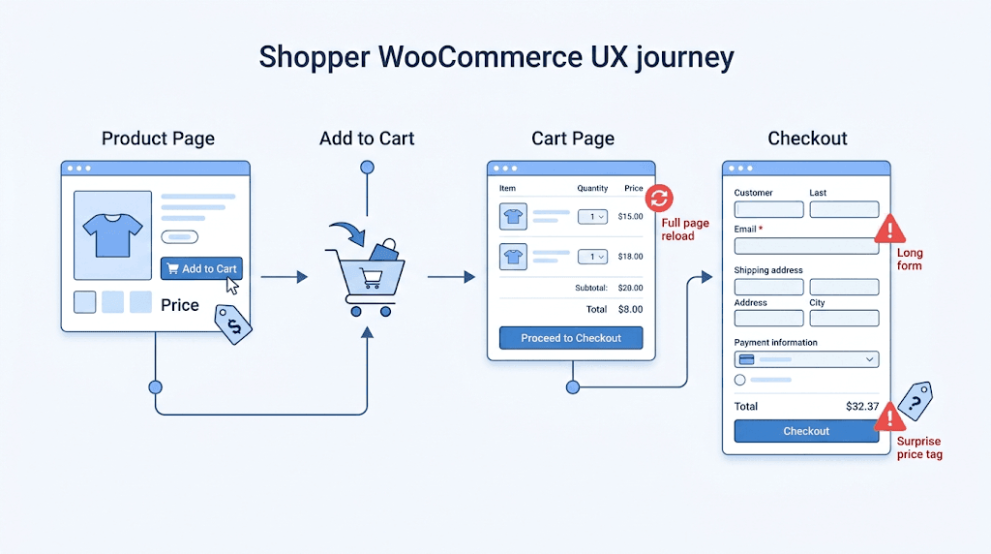
Shoppers build a mental budget based on the price they see on the product page. When shipping, taxes, or handling fees appear only at the final checkout step, many customers feel misled and abandon the purchase. This is consistently reported as one of the top reasons for cart abandonment across ecommerce research.
2. A Cart Page That Interrupts the Shopping Flow
WooCommerce’s default behavior sends shoppers to a separate cart page every time they want to review what they have added. On mobile especially, this means leaving the product listing, waiting for a new page to load, and then navigating back. Each of these steps is an opportunity for the shopper to lose momentum.
3. Forced Account Creation
Requiring an account before checkout adds a step that some shoppers are not willing to take, especially first-time buyers who are not yet sure they will return to the store.
4. Long or Confusing Checkout Forms
The default WooCommerce checkout includes billing fields, shipping fields, and order notes. For stores that do not need all of this information, it adds unnecessary friction. Checkout usability research generally recommends keeping the checkout form as short as the business actually requires.
5. No Clear Path Back to the Cart
If a customer wants to double-check their order, remove an item, or apply a coupon, and doing so requires a full page reload, that hesitation can turn into abandonment.
6. Lack of Trust Signals
Missing payment icons, unclear return policies, or a checkout page that looks different from the rest of the site can make shoppers second-guess the purchase, particularly on stores they have not bought from before.
Not every store suffers from all of these issues. The first step toward a better WooCommerce cart experience is identifying which of these actually apply, using tools like session recordings, WooCommerce analytics, or simple customer feedback.
How to Diagnose Cart and Checkout Problems
Before changing anything about the WooCommerce cart experience, it is worth confirming where shoppers are actually dropping off. A few practical ways to do this:
- Check WooCommerce Analytics or Google Analytics 4 for the ratio between “add to cart” events and completed orders. A large gap points to cart or checkout friction rather than a product problem.
- Review checkout drop-off by device. Mobile abandonment is typically higher than desktop, which often points to a cart or checkout layout that is not well suited to smaller screens.
- Test the checkout flow yourself, ideally on both desktop and mobile, and count the number of clicks and form fields between “add to cart” and “order confirmed.”
- Look at cart page bounce behavior. If shoppers frequently land on the cart page and leave immediately, the page itself may be the problem, not just the checkout form.
Practical Solutions to Improve the WooCommerce Cart Experience
Once the specific friction points are identified, most of them can be addressed without a full checkout rebuild.
Show Total Costs Early
Enable a shipping calculator on the cart page so shoppers can estimate shipping before reaching checkout. If flat-rate shipping is used, display it clearly on product or cart pages instead of only at the final step.
Reduce the Number of Checkout Fields
Review the default WooCommerce checkout fields under WooCommerce > Settings > Accounts & Privacy and Checkout Editor options, and remove fields that are not required for order fulfillment, such as a company name field for a store that does not need it.
Allow Guest Checkout
Under WooCommerce > Settings > Accounts & Privacy, enabling guest checkout removes the requirement to create an account before purchasing, while still allowing account creation as an option for shoppers who want it.
Keep the Cart Visible Without a Page Reload
This is one of the more effective and lower-effort fixes. Instead of sending shoppers to a full cart page every time, a slide-out mini cart (sometimes called a cart drawer) lets customers see what they have added, adjust quantities, or remove items without leaving the page they are on. This keeps the shopping flow intact and reduces the number of steps between browsing and checkout.
Add Trust Signals Near the Buy Button
Displaying accepted payment methods, a simple return policy line, or a security badge near the cart total can reduce hesitation, particularly for stores that are not yet well known.
Test on Mobile First
Since mobile abandonment tends to run higher than desktop, checkout and cart changes should be tested on a phone-sized screen before being considered complete.
Using a Mini Cart Drawer to Reduce Friction
Among the fixes above, replacing the default cart page interruption with a persistent, in-page mini cart tends to have one of the more direct effects on the WooCommerce cart experience, because it removes a full page reload from the shopping flow entirely.
Mini Cart Drawer for WooCommerce by Appsbd is a WooCommerce plugin built specifically for this purpose. Instead of redirecting shoppers to a separate cart page, it opens a sliding drawer that shows the current cart contents in place, over whatever page the shopper is already on. From that drawer, customers can:
- View items currently in the cart along with quantity and price
- Increase or decrease item quantity directly in the drawer
- Remove items without a page reload
- See the running cart total update instantly, since the drawer works on an AJAX basis
The plugin also includes a customizer panel with live preview, so store owners can adjust the drawer’s colors, styles, and layout to match their site without editing code. The free version covers the core mini cart drawer and WordPress Customizer configuration. The pro version adds a coupon input field inside the drawer and a Sale Booster module, which lets store owners set up spend-based incentives, such as offering a discount once a customer’s cart reaches a certain value.
This kind of change does not replace the checkout optimization work described earlier — it complements it. A shorter checkout form and a visible shipping estimate still matter. What a mini cart drawer specifically addresses is the friction that happens before checkout even starts, at the point where a shopper is deciding whether to keep browsing or move toward paying.
Store owners running fashion, grocery, or general retail WooCommerce stores, where shoppers commonly add multiple items and adjust quantities before buying, tend to see the most direct benefit from this kind of cart page change, since those are the shopping patterns where a page reload is most disruptive.
The most important feature is that Mini Cart Drawer now fully supports default WordPress Blocks and block-based themes. Whether you’re using WooCommerce or any modern block theme, it works seamlessly—something that most other Cart Drawer solutions currently don’t support.
Step-by-Step: Setting Up a Better WooCommerce Cart Experience
- Audit the current cart and checkout flow. Go through the full purchase process as a test customer, on both desktop and mobile, and note every extra click, field, or delay.
- Trim the checkout form. Remove unused fields under WooCommerce checkout settings and keep only what is needed to fulfill the order.
- Enable guest checkout so account creation is optional rather than required.
- Install and activate a mini cart drawer plugin, such as Mini Cart Drawer for WooCommerce, then configure its style through the WordPress Customizer to match the site’s branding.
- Add the cart icon to the main menu or header so it is visible and accessible from any page, not just after adding a product.
- Enable a shipping calculator or display shipping costs clearly on the cart drawer or cart page, before checkout.
- Test the full flow again on mobile, confirming that the drawer opens smoothly, quantities update correctly, and checkout is reachable in as few taps as possible.
- Monitor cart-to-checkout completion using WooCommerce Analytics over the following weeks to see whether the changes reduced drop-off.
Common Mistakes to Avoid When Improving the WooCommerce Cart Experience
- Adding too many cart features at once. A cart drawer with too many upsells, banners, or pop-ups can recreate the same friction it was meant to remove.
- Skipping mobile testing. A cart drawer that looks fine on desktop can behave differently on smaller screens if it is not checked directly.
- Hiding shipping costs until the last step. Even with a smoother cart experience, surprise costs at checkout remain one of the most common reasons for abandonment.
- Changing the cart and checkout at the same time without measuring each change. Store owners who redesign everything at once often cannot tell which specific change actually improved conversions.
- Ignoring page speed. Extra scripts and styles for a cart drawer or other plugin should be checked against site load times, since a slow-loading store creates its own kind of friction.
Additional Tips for Reducing Cart Abandonment
- Pair a smoother cart experience with a visible coupon field. Tools like Vite Coupon let store owners create and manage discount codes that shoppers can apply directly from the cart, without needing to search for a code elsewhere.
- Consider adding light social proof near the cart or checkout, such as recent order notifications, through a plugin like Elite Notification, which can reinforce trust at the decision point without being intrusive.
- For stores selling internationally, displaying prices in a shopper’s local currency through a tool such as Multi Currency for WooCommerce removes another layer of hesitation at checkout, since customers can see the actual cost in a currency they understand.
- Keep the cart and checkout visually consistent with the rest of the store. A checkout page that suddenly looks different, or uses a different font or color scheme, can make shoppers pause.
When to Get Technical Help
Most of the fixes described here — trimming checkout fields, enabling guest checkout, installing a cart drawer plugin, and adjusting settings through the WordPress Customizer — can be done without writing code. However, a few situations call for a developer:
- Custom checkout field logic tied to specific product types or shipping rules
- Deep customization of the checkout template beyond what a plugin’s settings allow
- Conflicts between a cart or checkout plugin and a specific theme or another plugin
- Performance issues that persist after basic optimization, which may require server-level or code-level review
For most small to mid-sized WooCommerce stores, though, the combination of checkout field cleanup, guest checkout, and a mini cart drawer covers the majority of common cart abandonment causes without requiring custom development.
Measuring Whether the WooCommerce Cart Experience Actually Improved
Changes to the cart and checkout are only useful if they can be measured. Before making adjustments, it helps to record a baseline for the current WooCommerce cart experience, so any improvement can be compared against real numbers rather than a general impression.
A few metrics worth tracking over two to four weeks before and after a change:
- Cart-to-checkout rate — the percentage of sessions where a cart is created that actually reach the checkout page. WooCommerce Analytics reports this under the Orders and Products sections, and it can also be built manually in Google Analytics 4 using add-to-cart and begin-checkout events.
- Checkout completion rate — of the sessions that reach checkout, how many complete an order. A low cart-to-checkout rate but a high checkout completion rate usually points to friction on the cart page itself, while the reverse usually points to the checkout form.
- Mobile versus desktop split — since a large share of WooCommerce cart experience problems show up disproportionately on mobile, tracking the two separately avoids masking a mobile-specific issue with stronger desktop numbers.
- Average order value — if a cart drawer or coupon field is added specifically to encourage larger orders, this is the metric that reflects whether it worked.
It is worth resisting the urge to change several things at once. A store that updates the checkout form, installs a mini cart drawer, and changes its shipping rates in the same week will have a hard time knowing which change actually moved the numbers. Rolling changes out one at a time, even over a few weeks, gives a much clearer picture of what is actually improving the WooCommerce cart experience and what is not.
For stores with lower traffic, where a two-week test may not produce a statistically meaningful sample, it is reasonable to rely more on qualitative signals—direct customer feedback, support tickets mentioning checkout problems, or session recordings—alongside whatever quantitative data is available.
Frequently Asked Questions
WooCommerce does not publish its own abandonment figures, but industry-wide research from the Baymard Institute puts the average online cart abandonment rate above 70%, meaning most shoppers who add an item to their cart do not complete the purchase. Individual store rates vary depending on industry, device mix, and checkout design.
A cart drawer does not fix every cause of abandonment, but it removes one specific source of friction: the need to leave the current page and load a separate cart page just to review or adjust an order. For stores where shoppers frequently check or update their cart, this can make the overall WooCommerce cart experience noticeably smoother.
Yes. Guest checkout does not remove any security controls; it simply allows a customer to complete an order without creating a password-protected account. Store owners can still collect the same order and shipping information, and customers can optionally create an account after checkout if they choose.
Not if the removed fields are genuinely unnecessary for the business. Fields like company name, a second address line, or order notes can often be removed for stores that do not need them, while required fields for shipping and payment should remain.
No. Plugins like Mini Cart Drawer for WooCommerce are installed and configured through the WordPress dashboard, with styling handled through the built-in WordPress Customizer rather than code edits.
Often, yes. Mobile abandonment rates tend to run higher than desktop, and a full-page cart reload is generally more disruptive on a smaller screen than on desktop, so a cart drawer or other in-page cart solution tends to have a more noticeable effect on mobile.
Conclusion
Improving the WooCommerce cart experience is rarely about one single fix. It comes from identifying where shoppers actually lose momentum — a hidden shipping cost, a forced account, a checkout form that asks for more than it needs, or a cart page that pulls the customer away from what they were doing — and addressing each of those points directly.
For many WooCommerce stores, the combination of a trimmed checkout form, guest checkout, visible shipping costs, and a mini cart drawer that keeps the cart accessible without a page reload covers most of the common causes of checkout friction. Tools like Mini Cart Drawer for WooCommerce are built specifically to handle that last piece, letting shoppers review, adjust, and move toward checkout without interrupting their shopping flow.
None of these changes guarantee a specific increase in sales, since every store’s traffic and audience are different. What they do is remove friction that has been consistently documented, across ecommerce research, as a reason shoppers leave without buying — which puts the store in a better position to convert the traffic it already has.
Subscribe
To get news about new releases, Updates, Blog Post, Deals and Discounts
Like this content? Want to share it with others
Appsbd's Other Apps
Vitepos
We've built a fast and easy-to-use Point of Sale system for WooCommerce. It lets you manage your local and online stores in one app, saving you time and money while ensuring a seamless experience for your customers.

Vite Rewards
Vite Rewards is a comprehensive loyalty points plugin designed to incentivize customer engagement and boost sales on your WooCommerce store. With a wide range of features, ViteRewards allows you to reward customers for various actions and interactions, creating a more engaging shopping experience.

Elite Licenser
Elite Licenser is a top WordPress license manager plugin that controls software, plugin, theme, and app activations. Its premium feature protects against unauthorized usage.
Mini Cart Drawer
This plugin adds a customizable mini cart to your WooCommerce site, with an easy control panel and WP Customizer support. It also includes a sale booster that offers dynamic discounts like "Spend $20 more for a $2 discount," encouraging customers to buy more.

Vite Coupon
Vite Coupon is a comprehensive coupon management system designed to simplify the creation, distribution, and tracking of discount coupons for online businesses. This plugin integrates seamlessly with various e-commerce platforms, offering a user-friendly interface and robust features to enhance promotional strategies.

User & Kiosk App
Vitepos User App is an addon that lets customers place orders directly, making shopping and dining faster and more convenient. Guests can scan a table QR code to view menus and order without waiting for staff. Orders are instantly processed by the Vitepos Core App, ensuring smooth workflow. The app also supports kiosk devices for efficient self‑service stations.

Member Area

Support System
Best Support System, Best by name, Best by nature, Best by feature, it is a self-hosted customer support desk software. It handles support tickets, manages email tickets, collects any payment by PayPal.