
WooCommerce Side Cart vs Default Cart: Which Is Better for Online Stores?
Written by Towhidul Islam. Posted in Mini Cart, WooCommerce, WordPress No Comments
WooCommerce side cart vs default cart is an important choice for any WooCommerce store. Some stores use the built-in cart page that comes with WooCommerce out of the box, while others switch to a side cart—a sliding panel that shows cart contents without leaving the current page.
The choice may seem small, but it can change how customers browse your store, how many clicks stand between “add to cart” and checkout, and, in some cases, how often a sale actually completes.
This article compares the WooCommerce side cart and the default cart page directly: how each one works, where each performs better, and which option is the right fit depending on the type of store. It also covers how to set up a side cart if you decide to switch.
What Is the Default WooCommerce Cart?
The default WooCommerce cart is the cart page that comes automatically with any WooCommerce installation. When a customer clicks “View Cart” or navigates to the cart URL, WooCommerce loads a full page listing every item, its quantity, its price, and a coupon field, followed by a “Proceed to Checkout” button.
This page is a real WordPress page, built with a shortcode or block, and it behaves like any other page on the site: clicking to it triggers a full page load, and any change — updating a quantity, applying a coupon, removing an item — usually requires clicking an “Update Cart” button or triggers another page refresh, depending on the theme.
How the Default Cart Works
- The cart page sits at its own URL, separate from the shop or product pages.
- Adding a product typically shows a small notice or redirects the shopper to the cart page, depending on theme settings.
- Editing quantities or applying a coupon happens directly on this page, then reloads the page or the cart block.
- Checkout is a separate step reached from a button on the cart page.
Strengths of the Default Cart
- It works immediately after WooCommerce is installed, with no extra plugin needed.
- It has enough room to show more information at once — shipping calculators, cross-sell products, order notes — since it’s a full page rather than a narrow panel.
- It is familiar. Most shoppers have used a dedicated cart page on other stores before, so there is little learning curve.
Limitations of the Default Cart
- Every visit to the cart interrupts whatever the shopper was doing, since it requires a full page load.
- On mobile, navigating to a separate cart page and back to browsing adds noticeable friction, especially for shoppers who want to keep browsing while checking their cart.
- The default cart page’s design is generic. It uses the store’s theme styling, but structurally, it looks close to identical across different WooCommerce stores unless a developer customizes the template.
What Is a WooCommerce Side Cart (Cart Drawer)?
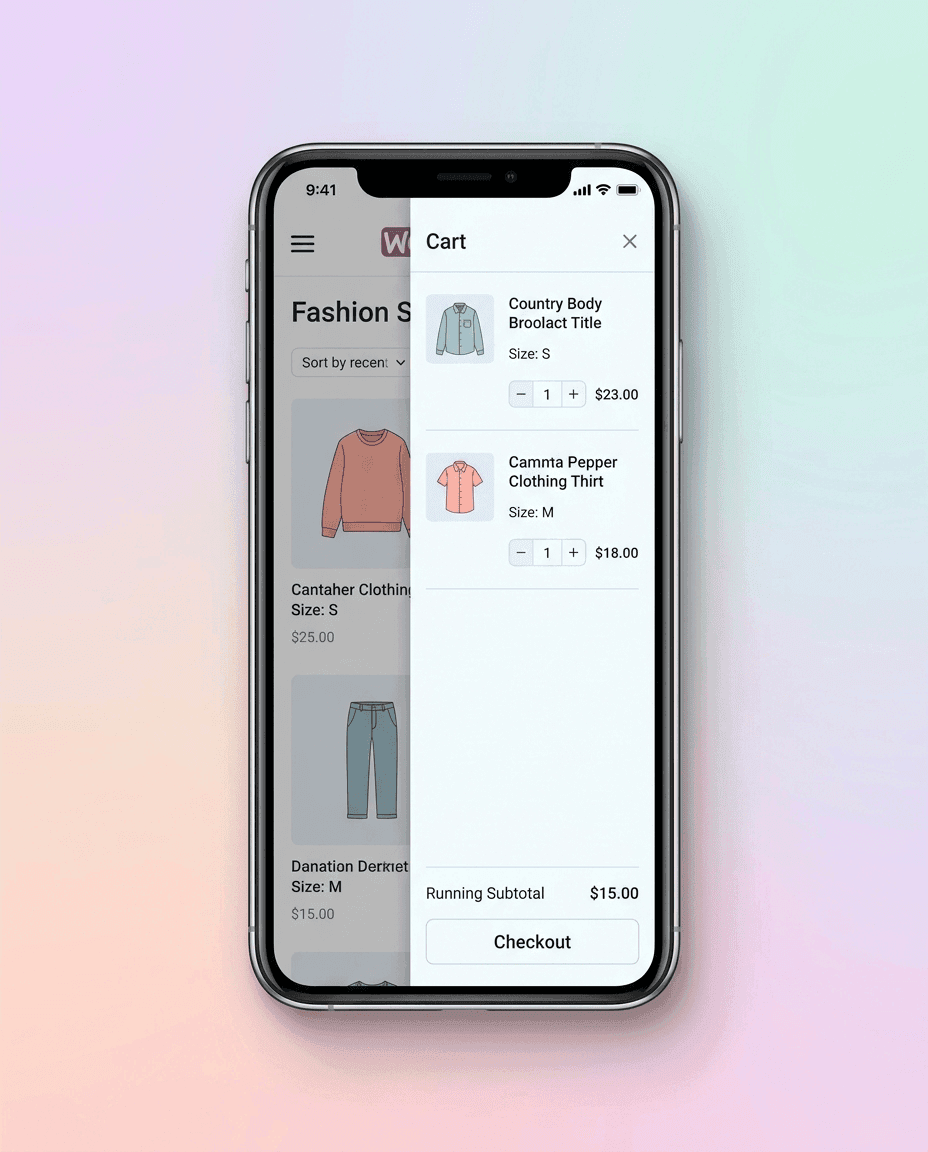
A WooCommerce side cart — also called a cart drawer, mini cart, or slide-out cart — is a panel that slides in from the side of the screen, usually triggered by clicking a cart icon or adding a product. It shows the same core information as the cart page (items, quantities, price, total) but without navigating away from the page the shopper is currently viewing.
This is not a native WooCommerce feature. WooCommerce ships with a basic “mini-cart” widget that can show a small item count and total in the header, but a full interactive side cart — one where customers can adjust quantities, remove items, and see live totals without a page reload — normally requires a dedicated side cart plugin, such as Mini Cart Drawer for WooCommerce.
How a Side Cart Works
- A cart icon, usually in the header or a floating position, opens the drawer with a click or automatically after a product is added.
- The drawer works over an AJAX connection, meaning quantity changes, item removal, and totals update instantly, without reloading the page.
- The shopper can close the drawer and continue browsing exactly where they left off.
- Checkout is still a separate page, but the shopper reaches it directly from the drawer rather than from a standalone cart page.
Strengths of a Side Cart
- Nothing interrupts the browsing session. The drawer opens over the current page and closes back into it.
- It performs noticeably better on mobile, where a full page reload for a quick cart check is more disruptive than on desktop.
- Because it is AJAX-based, quantity and total updates feel instant rather than waiting for a new page to render.
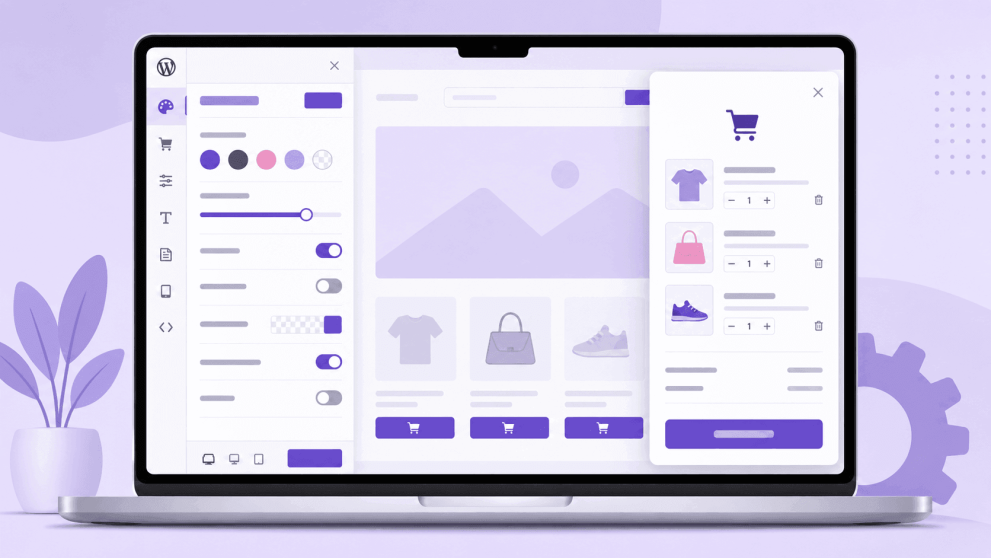
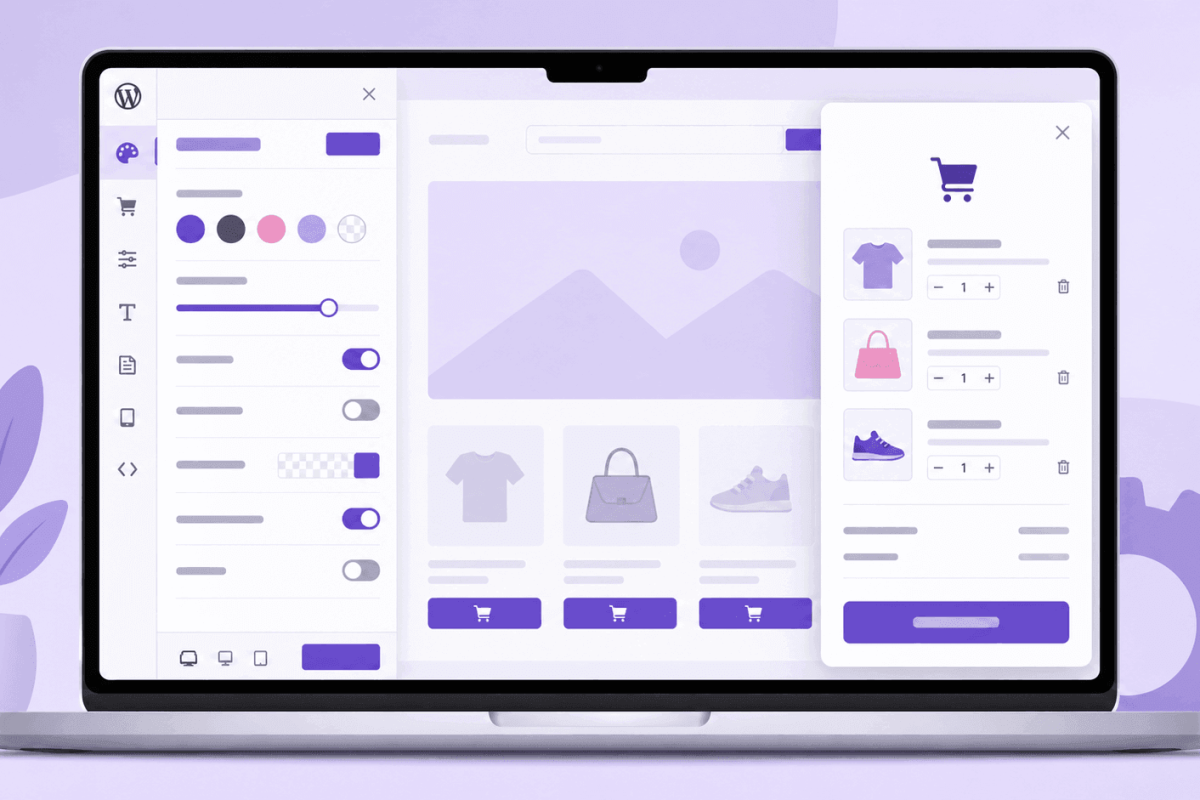
- Most side cart plugins, including Mini Cart Drawer, include a live customizer so the drawer’s colors, layout, and behavior can be adjusted without editing code.
Limitations of a Side Cart
- It has less screen space than a full cart page, so very long product lists or highly detailed order summaries can feel cramped.
- It usually requires installing and configuring a plugin, since it is not part of core WooCommerce.
- A poorly configured side cart—one with too many upsells, banners, or animations—can introduce its own kind of friction instead of removing it.
WooCommerce Side Cart vs Default Cart: Head-to-Head Comparison
The table below lines up the two approaches across the factors that matter most for a WooCommerce store.
| Factor | Default Cart Page | Side Cart (Cart Drawer) |
|---|---|---|
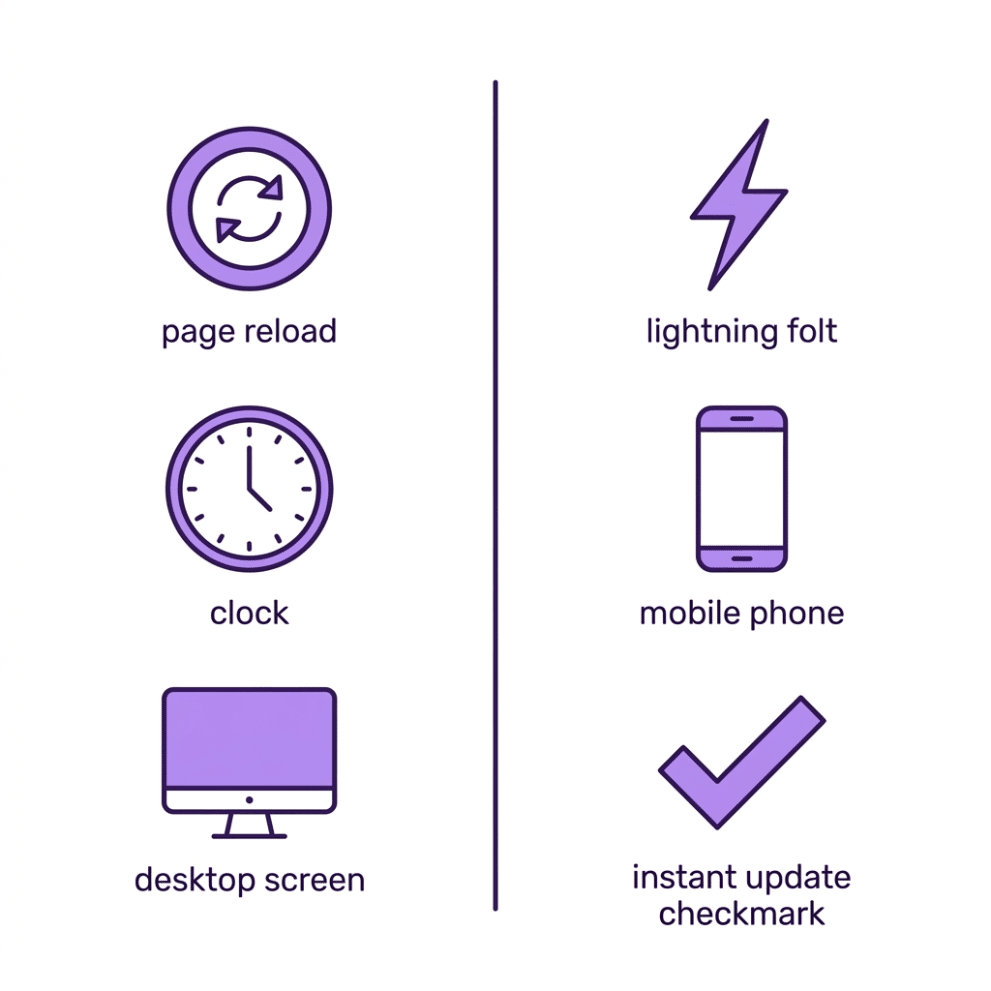
| Page reload required | Yes, every time the cart is opened | No, opens as an overlay |
| Mobile experience | Adequate, but each cart check interrupts browsing | Generally smoother, since browsing is not interrupted |
| Setup | Built in, no plugin needed | Requires a plugin such as Mini Cart Drawer |
| Screen space | More room for details, cross-sells, shipping calculators | Limited to a narrow panel |
| Speed of interaction | Depends on page load speed | Updates instantly via AJAX |
| Customization | Limited to theme styling and template overrides | Often includes a live customizer with color, layout, and style options |
| Best suited for | Stores with few items per order, or where a full page cart is genuinely needed | Stores where customers browse multiple products and adjust their cart repeatedly |
| Native to WooCommerce | Yes | No, plugin-dependent |
Neither option is universally “better.” A WooCommerce side cart reduces friction for shoppers who move between browsing and checking their cart frequently, while the default cart page still makes sense for stores that need more room to display information at the cart stage, such as detailed shipping options or multiple cross-sell blocks.
Which Is Better for Different Store Types?
The right choice depends heavily on how customers actually shop on a given store.
Fashion and Apparel Stores
Shoppers in fashion stores commonly add multiple sizes or colors, compare items, and adjust their cart several times before checking out. A side cart tends to fit this pattern well, since it lets shoppers glance at their cart and keep browsing without losing their place on the product listing.
Grocery and Multi-Item Retail
Grocery-style WooCommerce stores, where customers add many small items in one session, benefit from quick, repeated cart checks. A side cart’s instant updates and lack of page reloads make this kind of frequent interaction less tiring than reloading a full cart page each time.
Single-Product or Low-SKU Stores
A store selling one or a handful of products, where most customers buy once and move straight to checkout, may not see much benefit from a side cart. The default cart page is simpler to set up and sufficient when there is little back-and-forth cart activity to streamline.
Digital Products and Subscriptions
Stores selling digital downloads or subscriptions, where checkout is usually a single, deliberate action rather than a browsing-and-adjusting process, can generally use either option without a major difference in outcome.
High Average Order Value (AOV) Stores
For stores where increasing the number of items per order matters, some side cart plugins — including Mini Cart Drawer’s Sale Booster module — support spend-based incentives, such as showing a progress bar toward a discount once the cart reaches a certain value. This is harder to build into a default cart page without custom development.
How a Side Cart Solves the Core Problem of the Default Cart
The central issue with the default WooCommerce cart is not that it fails to work — it does exactly what it is built to do. The issue is the interruption it creates. Every trip to the cart page pulls a shopper away from the product listing or category page they were on, and getting back to that exact spot after checking the cart is not always smooth, particularly on mobile.
A WooCommerce side cart addresses this directly by keeping the shopper on the same page while still giving full access to cart contents. Mini Cart Drawer for WooCommerce is built around this specific behavior. It replaces the need to visit a separate cart page with a drawer that opens instantly, shows the current items with quantity and price, and updates the total the moment something changes, since the entire drawer works on an AJAX basis. From the drawer, a shopper can:
- View every item currently in the cart along with its quantity and price
- Increase or decrease a quantity without a page reload
- Remove an item directly from the drawer
- Move straight to checkout once ready
The plugin also includes a control panel and a WordPress Customizer integration with live preview, so store owners can adjust the drawer’s colors, icon, and layout to match their site without writing code. The free version covers the core mini cart drawer and Customizer configuration, and the pro version adds a coupon input field inside the drawer along with the Sale Booster module for spend-based discount incentives. It also works with block-based WordPress themes, which matters for stores that have moved to the WordPress Site Editor rather than a classic theme.
This does not mean the default cart page has no place. A side cart handles the frequent, in-session cart checks; the cart page (or checkout page, depending on setup) still exists for the final review before payment. The two are not mutually exclusive — most stores that add a side cart keep the standard cart and checkout pages in place as well, and simply reduce how often shoppers need to visit them mid-session.
Step-by-Step: Adding a Side Cart to WooCommerce
Switching from relying solely on the default cart page to using a WooCommerce side cart does not require custom development. Here is the general process using a plugin such as Mini Cart Drawer:
- Install a side cart plugin. From the Mini Cart Drawer website, go to pricing section > get Free plugin download button, click on it for downlaod.
- Open the plugin’s control panel. Most side cart plugins add a dedicated settings menu where the drawer type (sliding drawer or floating icon) and basic behavior can be selected.
- Configure the drawer through the WordPress Customizer. Adjust colors, icon style, container size, and animation to match the site’s branding, using the live preview to check changes before saving.
- Add the cart icon to the site’s menu or header, so it is visible and clickable from any page, not just after a product is added.
- Decide whether to disable the redirect to the default cart page after “Add to Cart,” so the drawer opens instead of sending shoppers to a full page.
- Test on both desktop and mobile. Confirm the drawer opens smoothly, quantity changes update instantly, and the checkout link inside the drawer works correctly.
- Check compatibility with the active theme, particularly if the store uses a block-based theme, since not every side cart plugin supports the WordPress Site Editor equally well.
Common Mistakes to Avoid
- Overloading the side cart with upsells and banners. A drawer that tries to show too much at once recreates the same friction it is meant to remove.
- Forgetting to test on mobile. A side cart that looks fine on a large screen can behave differently on a small one if it is not checked directly.
- Leaving the old cart page redirect active alongside the drawer, which confuses shoppers who expect the drawer to open but get sent to the full page instead.
- Skipping the theme compatibility check, especially for stores running a block-based or heavily customized theme.
- Comparing conversion results without a baseline. Switching to a side cart and changing other parts of the checkout flow in the same week makes it hard to know which change caused a shift in numbers.
When the Default Cart Page Still Makes Sense
A side cart is not automatically the right move for every store. The default cart page is a reasonable choice when:
- The store has very few products and most orders contain a single item, so there is little repeated cart activity to streamline.
- The cart page needs to display detailed information — multiple shipping options, order notes, or several cross-sell blocks — that would feel cramped in a narrow drawer.
- The store’s theme has a heavily customized cart page template that a generic side cart plugin might not visually match without additional styling work.
For most stores where customers browse several products, adjust quantities, or check their cart more than once per session, a side cart tends to reduce friction more than the default cart page does on its own. For a broader look at cart and checkout friction beyond just the cart display format, see this guide on improving the WooCommerce cart experience and reducing checkout friction.
When to Get Technical Help
Most side cart plugins are installed and configured entirely through the WordPress dashboard, without needing a developer. A few situations do call for technical help:
- Deep visual customization beyond what the plugin’s customizer settings allow
- A conflict between the side cart plugin and a specific theme or another plugin
- Custom logic tied to specific product types, such as showing different drawer behavior for subscriptions versus one-time purchases
- Performance issues that persist after normal plugin configuration, which may point to a server-level or code-level conflict
For the majority of small to mid-sized WooCommerce stores, installing a side cart plugin and configuring it through the built-in customizer covers the setup without requiring custom code.
Frequently Asked Questions
Not exactly. WooCommerce includes a basic mini-cart widget that can show an item count and subtotal, but it typically does not open as a full interactive drawer with live quantity editing. A dedicated side cart plugin adds that interactive, AJAX-based behavior.
No. A side cart works alongside the existing cart and checkout pages. It reduces how often shoppers need to visit the full cart page mid-session, but the cart page and checkout flow remain part of the store.
A well-built side cart plugin should have a limited effect on page speed, since it typically loads with the rest of the theme’s header scripts. As with any plugin, it is worth checking site speed before and after installation, particularly on stores already close to their performance limits.
No. Plugins such as Mini Cart Drawer are installed through the WordPress dashboard, and styling is handled through the built-in WordPress Customizer rather than code edits.
There is no single answer that applies to every store, since it depends on how customers shop. Stores where shoppers add multiple items and adjust their cart repeatedly tend to see more benefit from a side cart, since it removes the page reload that interrupts that pattern. Stores with simple, single-item purchases may see little difference either way.
This depends on the plugin. Mini Cart Drawer for WooCommerce supports default WordPress Blocks and block-based themes, which is not the case for every side cart plugin currently available.
Conclusion
The WooCommerce side cart and the default cart page solve the same basic need — showing customers what they have added to their order — but in different ways. The default cart page is built into WooCommerce and works well for stores with simple, low-friction purchases. A WooCommerce side cart, set up through a plugin like Mini Cart Drawer for WooCommerce, tends to reduce friction more effectively for stores where shoppers browse multiple products, adjust quantities, and check their cart more than once before checking out.
There is no need to pick one permanently without testing. Since a side cart plugin installs alongside the existing cart and checkout pages rather than replacing them, it is possible to add one, test it against real store data over a few weeks, and decide from there whether it fits how customers actually shop.
Subscribe
To get news about new releases, Updates, Blog Post, Deals and Discounts
Like this content? Want to share it with others
Appsbd's Other Apps
Vitepos
We've built a fast and easy-to-use Point of Sale system for WooCommerce. It lets you manage your local and online stores in one app, saving you time and money while ensuring a seamless experience for your customers.

Vite Rewards
Vite Rewards is a comprehensive loyalty points plugin designed to incentivize customer engagement and boost sales on your WooCommerce store. With a wide range of features, ViteRewards allows you to reward customers for various actions and interactions, creating a more engaging shopping experience.

Elite Licenser
Elite Licenser is a top WordPress license manager plugin that controls software, plugin, theme, and app activations. Its premium feature protects against unauthorized usage.
Mini Cart Drawer
This plugin adds a customizable mini cart to your WooCommerce site, with an easy control panel and WP Customizer support. It also includes a sale booster that offers dynamic discounts like "Spend $20 more for a $2 discount," encouraging customers to buy more.

Vite Coupon
Vite Coupon is a comprehensive coupon management system designed to simplify the creation, distribution, and tracking of discount coupons for online businesses. This plugin integrates seamlessly with various e-commerce platforms, offering a user-friendly interface and robust features to enhance promotional strategies.

User & Kiosk App
Vitepos User App is an addon that lets customers place orders directly, making shopping and dining faster and more convenient. Guests can scan a table QR code to view menus and order without waiting for staff. Orders are instantly processed by the Vitepos Core App, ensuring smooth workflow. The app also supports kiosk devices for efficient self‑service stations.

Member Area

Support System
Best Support System, Best by name, Best by nature, Best by feature, it is a self-hosted customer support desk software. It handles support tickets, manages email tickets, collects any payment by PayPal.