
Warning: Undefined array key "is_rate_editable" in /www/wwwroot/appsbd.com/wp-content/plugins/wpdiscuz/class.WpdiscuzCore.php on line 1303

Warning: is_dir(): open_basedir restriction in effect. File(/var/www/html/wp-content/plugins/wpdiscuz/themes/default) is not within the allowed path(s): (/tmp/:/www/wwwroot/appsbd.com/) in /www/wwwroot/appsbd.com/wp-content/plugins/wpdiscuz/forms/wpdFormAttr/Form.php on line 146
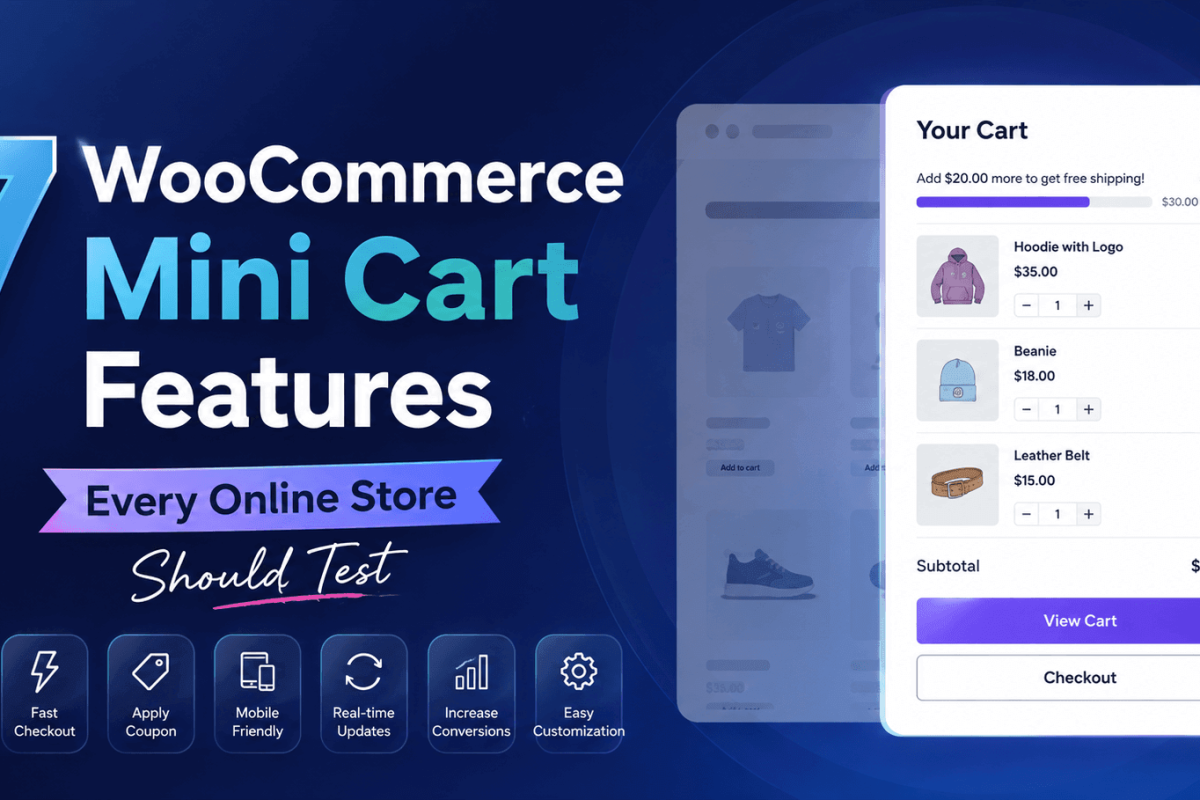
7 WooCommerce Mini Cart Features Every Online Store Should Test - Appsbd
Appsbd

WooCommerce mini cart features

7 WooCommerce Mini Cart Features Every Online Store Should Test
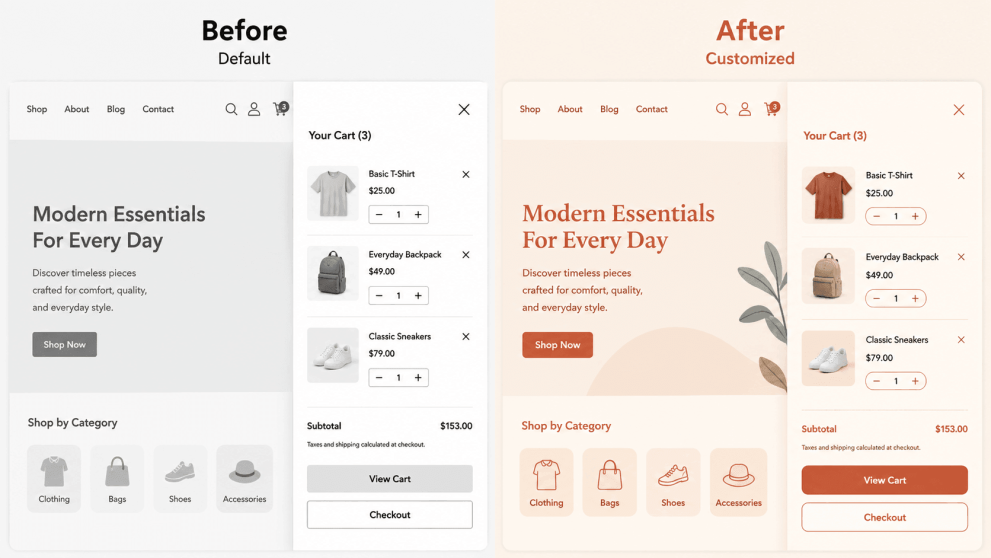
If you run a WooCommerce store, you have probably added a WooCommerce mini cart at some point and moved on without giving it much more thought. That is a mistake. A mini cart is not a single feature — it is a bundle of smaller decisions, and each one changes how customers shop on your site. Some of those decisions raise average order value. Others quietly cost you sales because a setting was left on its default.

This article walks through seven WooCommerce mini cart features worth testing on your own store, why each one matters, and how to tell if it is working. Along the way, we will look at what a mini cart is supposed to solve, where WooCommerce’s default cart behavior falls short, and how a plugin such as Mini Cart Drawer approaches each of these features in practice.

Why the WooCommerce Mini Cart Deserves More Attention

According to the Baymard Institute, which calculated this figure from 50 separate studies on ecommerce shopping cart abandonment, the average online cart abandonment rate is 70.22%. In other words, roughly seven out of ten shoppers who add a product to their cart leave without completing the purchase. Not all of that is preventable — some visitors are simply browsing — but a meaningful share of it comes down to friction: confusing navigation, an unclear cart total, or a checkout process that feels like it started over from scratch.

A mini cart addresses one narrow but important part of that friction: it lets a shopper see and adjust what they have added without leaving the page they are on. Instead of clicking through to a separate cart page, checking the total, then clicking back to keep browsing, the mini cart shows that information in a small drawer, popup, or sidebar.

That sounds simple, but “simple” does not mean “one-size-fits-all.” Different WooCommerce mini cart implementations handle discounts, layout, mobile behavior, and menu placement in different ways — and those differences are exactly what separates a mini cart that helps conversions from one that just sits there.

WooCommerce mini cart features

What Counts as a WooCommerce Mini Cart Feature

Before testing anything, it helps to separate what a mini cart is from what it does. The base function — a compact cart preview that updates without a full page reload — is standard. The features layered on top of that base function are where WooCommerce mini cart plugins start to differ from each other, and from WooCommerce’s own built-in cart widget.

Here are the seven worth testing on your store.

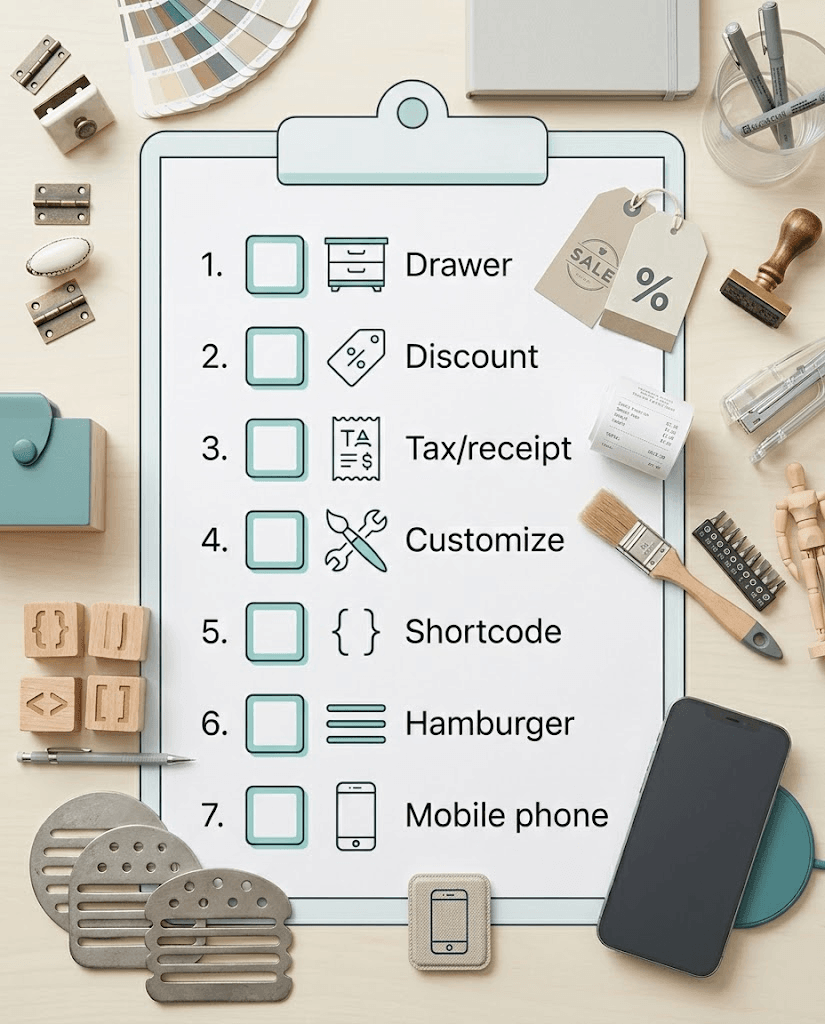
1. Drawer vs. Floating Display Style

The first thing to test is not a discount rule or a customization option — it is the display format itself. Most WooCommerce mini cart tools offer at least two layouts:

  • Drawer style: sometimes called a side cart, this format slides in from the side of the screen, usually covering part of the page, and closes when the customer taps outside it or hits an X.
  • Floating style: the cart appears as a smaller panel anchored near the cart icon, without covering the full screen height.

Neither style is universally better. A drawer works well for stores with longer product pages, since it gives shoppers a focused view of their cart without needing to scroll. A floating panel can feel less intrusive on shorter pages or single-product stores, where covering the screen adds friction rather than removing it.

Mini Cart Drawer supports both the drawer and floating format, which makes this a genuinely testable variable rather than a fixed choice — you can switch formats and compare how each performs with your own traffic instead of guessing.

What to test: Run each style for a set period (at least a week, ideally covering a full sales cycle) and compare add-to-cart-to-checkout completion rates between the two.

2. Dynamic Discount / Sales Booster Rules

A WooCommerce mini cart is one of the few places on a store where a shopper’s attention is guaranteed to land right before they decide whether to keep shopping or check out. That makes it a reasonable place to show a spend-based incentive — for example, a message like “spend a bit more to unlock a discount.”

This is sometimes called a sales booster or a cart progress bar. The mechanic is straightforward: the store owner sets a spending threshold, and the mini cart displays a progress indicator showing how close the customer is to reaching it. Mini Cart Drawer’s sale booster module works this way, letting store owners configure a rule such as offering a small discount once the cart total crosses a set amount.

The reason this is worth testing rather than assuming it will work: a poorly calibrated threshold can backfire. If the threshold is set too high relative to your average order value, shoppers may see it as unreachable and ignore it. If it is set too low, you are giving away margin on purchases that would have happened anyway.

What to test: Try at least two different threshold amounts (one close to your current average order value, one moderately above it) and compare the resulting average order value and discount redemption rate.

3. Tax and Coupon Visibility Inside the Cart

One detail that gets overlooked in mini cart setup is whether tax and coupon information is visible inside the drawer itself, or only on the full cart and checkout pages. Given that unexpected costs at checkout are consistently cited as a reason shoppers abandon carts, showing this information earlier — while the customer is still deciding whether to add more items — can reduce the number of surprises later in the funnel.

Mini Cart Drawer displays tax information and applied coupons directly inside the WooCommerce mini cart, so a customer does not have to leave the page to check whether a discount code applied correctly or how much tax will be added.

What to test: If your current mini cart hides tax and coupon details, turn on visibility for a testing period and watch whether checkout abandonment (specifically, carts that reach the checkout page but do not convert) changes.

4. Live Customizer Fit With Your Theme

A mini cart that visually clashes with the rest of the store looks like an afterthought, and shoppers notice inconsistency even if they cannot articulate why something feels off. This is why the ability to adjust colors, icons, container size, and button styling from a live preview matters more than it might seem.

Mini Cart Drawer includes a Live Customizer for adjusting these visual details, along with support for custom CSS for stores that need more precise control than the built-in options allow.

What to test: Before launching a WooCommerce mini cart on a live store, preview it against your actual theme colors and fonts rather than relying on the plugin’s default styling. A five-minute customization pass can be the difference between a cart that looks native to your site and one that looks bolted on.

WooCommerce mini cart features

5. Shortcode or Widget-Based Placement

Not every store wants the mini cart limited to a drawer or floating panel triggered by the header icon. Some also want a compact cart preview embedded directly inside a page, sidebar, or footer — for example, on a landing page built for a specific promotion.

This is where shortcode support becomes relevant. Mini Cart Drawer includes shortcodes that let a store owner place a small, interactive cart anywhere a shortcode can be inserted, and that embedded cart updates in real time along with the rest of the store.

What to test: If you run seasonal landing pages or product bundles outside your normal navigation flow, test adding an embedded mini cart shortcode directly on that page and compare conversion rates against a version without it.

6. Add-to-Menu Cart Icon

Where the cart icon lives in your site’s navigation affects how often customers interact with it. A cart icon that is easy to spot in the main menu gets checked more often than one buried in a header corner or missing from the menu entirely.

Mini Cart Drawer includes an “Add Into Menu” option that places the cart icon directly inside the WordPress navigation menu, and it can run alongside the drawer or floating cart rather than replacing it.

What to test: If your current theme’s cart icon is small or easy to miss, add the cart to your main menu for a testing period and track whether cart-icon click-through rate changes.

7. Mobile Responsiveness and Cross-Device Consistency

Given how much shopping now happens on mobile, a WooCommerce mini cart feature that works cleanly on desktop but breaks — overlapping text, cut-off buttons, awkward scrolling — on a phone screen is not a minor visual bug. It is a checkout barrier for the majority of your traffic.

Mini Cart Drawer is built to adjust its layout across devices, and this is one feature that is harder to “configure” and more something you verify directly, since responsive behavior depends on the interaction between the plugin, your specific theme, and any custom CSS already running on your site.

What to test: Open your mini cart on at least three real device sizes (a small phone screen, a tablet, and a desktop browser) and check that quantity controls, remove buttons, and the checkout call-to-action are all fully visible and tappable without zooming.

How Mini Cart Drawer Approaches These Features

To be clear about where the product fits in: Mini Cart Drawer for WooCommerce is a plugin built around the seven features above. It offers both drawer and floating cart types, a sale booster module for spend-based discounts, a Live Customizer for matching your theme, tax and coupon visibility inside the cart, shortcode support for embedding the cart outside the standard trigger, an add-to-menu option, and a responsive layout intended to work across devices. It also has a free version available through WordPress.org with a smaller feature set, and paid tiers for stores that need the full customization and support options.

This is not the only way to add a side cart to a WooCommerce store — some themes include a basic version, and there are other dedicated plugins as well — but it is one concrete example of how these seven testable features show up in an actual product rather than as abstract concepts.

Step-by-Step: Setting Up a WooCommerce Mini Cart Test on Your Store

  • Audit your current cart experience. Note whether you currently have any mini cart at all, and if so, which of the seven features above it already supports.
  • Install and activate a mini cart plugin. If you are starting from WooCommerce’s default cart behavior, install a plugin such as Mini Cart Drawer from the WordPress Plugins directory or upload it directly to your site.
  • Configure one feature at a time. Resist the urge to change everything at once — set the display style first, preview it against your theme, and confirm it works before layering on the sales booster or menu placement.
  • Check mobile behavior immediately. Do this before running any promotional traffic to the change, since mobile visitors will make up the largest share of your test.
  • Set a baseline. Record your current add-to-cart rate, cart abandonment rate, and average order value before making changes, so you have something to compare against.
  • Run each feature test for a full sales cycle. A single day of data, especially around a weekend or holiday, will not tell you much. Give each variable at least a week.
  • Compare results against your baseline, not against industry averages — your own store’s prior performance is the more meaningful benchmark.

Common Mistakes to Avoid

  • Turning on every feature at once. If you enable the sales booster, change the display style, and add the cart to your menu in the same day, you will not know which change caused any shift in performance.
  • Setting a discount threshold without checking your average order value first. A threshold that is far above or far below what customers typically spend will not influence behavior in either direction.
  • Ignoring mobile until after launch. A WooCommerce mini cart that looks fine on a desktop preview can still be broken on a phone, and mobile traffic is usually the majority of visits for most stores.
  • Skipping the visual customization step. A mismatched cart color scheme is a small detail, but it is one of the first things a returning customer notices.
  • Assuming more visible discounts always help. Some products and price points do not benefit from an aggressive spend-more prompt, particularly for stores selling higher-consideration items where customers are less price-driven at the point of adding to cart.

Additional Tips

  • If your store has a fashion, restaurant, or retail-POS component alongside your WooCommerce storefront, keep in mind that the mini cart is only one part of the checkout journey — it works best alongside a straightforward checkout page and clear shipping cost disclosure.
  • Test on a staging copy of your site before making changes on a live store, particularly for CSS customization, so an incompatible theme conflict does not show up in front of paying customers.
  • Review your mini cart settings after any major theme update, since theme changes occasionally affect how custom CSS and menu placements render.

Frequently Asked Questions

The default WooCommerce cart page requires a full page load and takes the customer away from what they were browsing. A WooCommerce mini cart shows the same cart contents in a compact drawer, floating panel, or embedded widget without navigating away from the current page.

It can reduce one specific type of friction — the need to leave a product page to check cart contents — but it will not address every cause of abandonment, such as unexpected shipping costs or a lack of trust at checkout. It is one improvement among several, not a complete fix on its own.

Most dedicated WooCommerce mini cart plugins, including Mini Cart Drawer, are built to work across standard WooCommerce themes, though visual fit can vary and is worth checking with the Live Customizer or a staging site before launch.

Plugins with a sales booster or dynamic discount module, such as Mini Cart Drawer’s sale booster, let store owners set spend-based discount rules that display as a progress indicator inside the cart. The specific rules available depend on the plugin.

That depends on which features your store needs. A free version typically covers the basic drawer and floating cart display, while paid tiers usually add features like the sales booster module, premium support, and additional customization options.

A well-built mini cart updates via AJAX rather than reloading the page, so it should not meaningfully affect page load speed. As with any plugin, poorly optimized code can add overhead, which is one more reason to test performance on a staging site before deploying to production.

Conclusion

A mini cart is easy to install and easy to ignore once it is running. But treating it as a single checkbox — “add mini cart, done” — means missing most of what actually affects conversions: which display style fits your store, whether a spend-based discount is calibrated correctly, whether tax and coupon details are visible early enough, and whether the whole thing holds up on a phone screen.

Testing these seven features individually, with a real baseline to compare against, is the difference between a mini cart that quietly helps and one that just takes up space in your header. Whether you build this with WooCommerce’s own tools, a theme’s built-in option, or a dedicated plugin like Mini Cart Drawer, the testing process is the same — change one thing, measure it against your own baseline, and keep what actually moves the numbers.

WooCommerce mini cart features

Subscribe

To get news about new releases, Updates, Blog Post, Deals and Discounts

Like this content? Want to share it with others

Appsbd's Other Apps

Vitepos

Vitepos

We've built a fast and easy-to-use Point of Sale system for WooCommerce. It lets you manage your local and online stores in one app, saving you time and money while ensuring a seamless experience for your customers.

Vite Rewards

Vite Rewards

Vite Rewards is a comprehensive loyalty points plugin designed to incentivize customer engagement and boost sales on your WooCommerce store. With a wide range of features, ViteRewards allows you to reward customers for various actions and interactions, creating a more engaging shopping experience.

Elite Licenser

Elite Licenser

Elite Licenser is a top WordPress license manager plugin that controls software, plugin, theme, and app activations. Its premium feature protects against unauthorized usage.
Mini Cart Drawer

Mini Cart Drawer

This plugin adds a customizable mini cart to your WooCommerce site, with an easy control panel and WP Customizer support. It also includes a sale booster that offers dynamic discounts like "Spend $20 more for a $2 discount," encouraging customers to buy more.

Vite Coupon

Vite Coupon

Vite Coupon is a comprehensive coupon management system designed to simplify the creation, distribution, and tracking of discount coupons for online businesses. This plugin integrates seamlessly with various e-commerce platforms, offering a user-friendly interface and robust features to enhance promotional strategies.

User & Kiosk App

User & Kiosk App

Vitepos User App is an addon that lets customers place orders directly, making shopping and dining faster and more convenient. Guests can scan a table QR code to view menus and order without waiting for staff. Orders are instantly processed by the Vitepos Core App, ensuring smooth workflow. The app also supports kiosk devices for efficient self‑service stations.

Member Area

Member Area

Members Area is a private section for registered users to manage licenses and view details. It also supports coupon management on platforms like AppSumo and PitchGround, with tools to create, import, export, and generate unique codes easily.
Support System

Support System

Best Support System, Best by name, Best by nature, Best by feature, it is a self-hosted customer support desk software. It handles support tickets, manages email tickets, collects any payment by PayPal.


Subscribe
Notify of
guest
0 Comments
Oldest
Newest Most Voted
Inline Feedbacks
View all comments

0
Would love your thoughts, please comment.x
()
x