

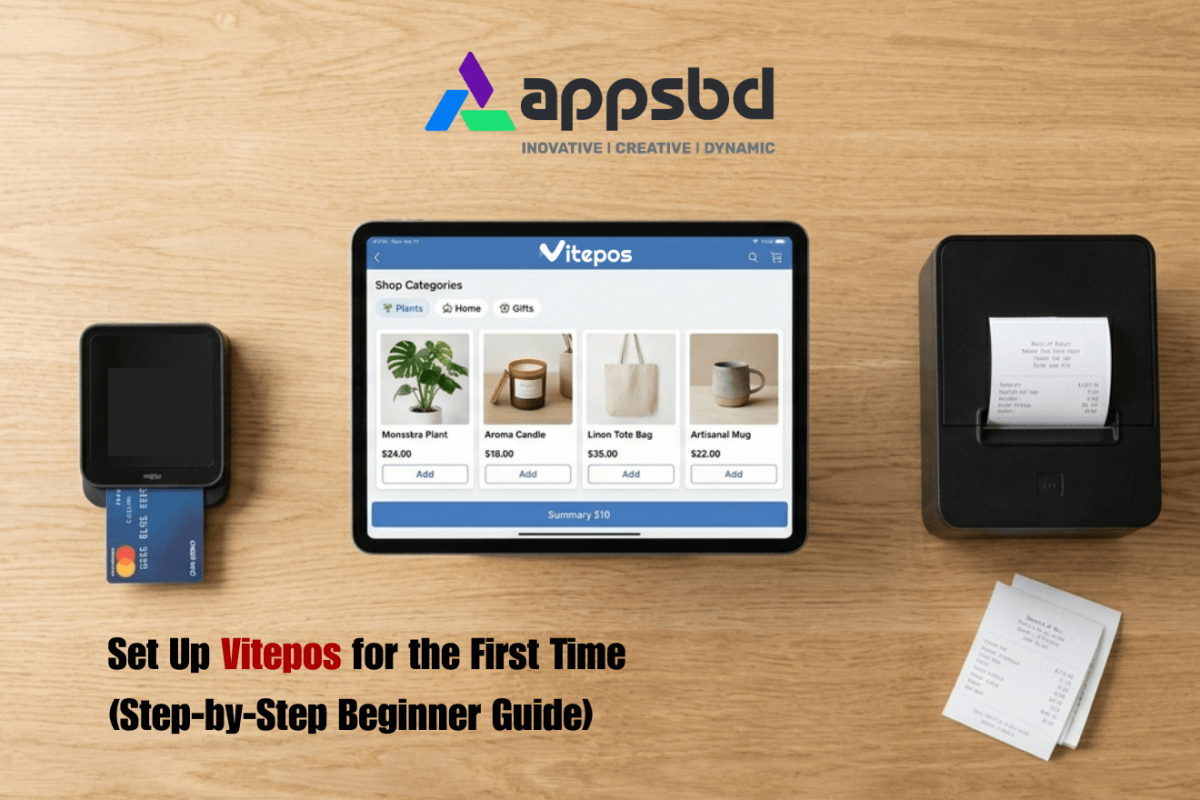
How to Set Up Vitepos for the First Time (Step-by-Step Beginner Guide)
Written by Md Ferdous Hassan Alin. Posted in POS, WooCommerce, WordPress No Comments
Introducing How to Set Up Vitepos
Vitepos is a point-of-sale (POS) plugin for WordPress that works on top of WooCommerce. It lets you run in-store or counter sales directly from your browser — no separate hardware software required. If you have a WooCommerce store and want to handle walk-in customers, Vitepos connects your online inventory to a physical checkout screen.
This guide walks through the complete Vitepos setup process from plugin installation to your first test sale. Each step is written for someone doing this for the first time.
What You Need Before You Start
Before beginning the Vitepos installation, make sure you have the following ready:
- A working WordPress site (version 6.0 or higher)
- WooCommerce installed and activated
- At least one product added in WooCommerce
- Admin access to your WordPress dashboard
- The Vitepos plugin file (downloaded from the official site or WordPress.org)
Step 1: Install the Vitepos Plugin
Install via WordPress Dashboard
Log in to your WordPress admin panel. Go to Plugins → Add New. In the search box, type Vitepos. When the plugin appears in the results, click Install Now. Once installation finishes, click Activate. After activation, you will see the Vitepos Lite menu on the WordPress admin panel sidebar.
If you have the plugin as a ZIP file (for the Pro version), go to Plugins → Add New → Upload Plugin. Choose your ZIP file, click Install Now, then activate it.
Step 2: Activate Your License (Pro Version Only)
Enter your license key
If you purchased the Pro version, you need to activate your license before using premium features. After activating the pro version, you will see the Vitepos menu on the WordPress admin panel sidebar. Click on Vitepos and it will ask for the license key and the Email address. Provide the valid license key for access the Vitepos Pro feature.
If you are using the free version, skip this step and move to Step 3.
Step 3: Configure WooCommerce and Vitepos General Settings
Set up basic store details
- Currency: Vitepos pulls this from your WooCommerce settings. Confirm it matches your store currency.
- Tax settings: Choose whether your prices include tax or exclude it in WooCommerce tax settings. As Vitepos depends on WooCommerce tax configuration.
- Decimal places: Set how many decimal places appear in prices at checkout in WooCommerce.
Go to Vitepos → Settings → General. Here you will find several options to configure:
- Barcode field: If your products have barcodes, select which product field stores the barcode number (Priduct ID is the most common choice).
Click Save Settings after making your selections.
Step 4: Create an Outlet
Add your store location
In Vitepos, an “outlet” is a physical store location. Even if you only have one store, you need to create at least one outlet before you can open the POS Panel.
Go to Vitepos → Outlets → Add New Outlet. Fill in the following fields:
- Outlet Name: A name for the location (e.g., “Main Store” or “Downtown Branch”)
- Address: The physical address of this outlet. User real address because the tax is calculate based on the outlet address like country and state, which is most important to fill up.
- Phone: Contact number for this location
- Email: Email address for this outlet
Click Save Outlet. The outlet now appears in your list.
Step 5: Create Counter
Set up your POS counter
A counter is the actual checkout screen your cashier uses. Each outlet can have one or more counter. Go to Vitepos → counter→ Add New counter.
- Counter Name: Give it a clear name like “Counter 1” or “Front Desk”
- Counter Number: Set the counter number like 1 or 2.
Save the counter. You can create multiple counters if your location has more than one checkout counter.
Step 6: Set Up Payment Methods
Configure how customers pay
Go to Vitepos → Settings → Payment. You will see a list of payment methods you can enable for in-store checkout. The available options typically include:
- Cash: Standard cash payment. Enable this for most physical stores.
- Swipe Machine: For manual card payments via machine at the counter. This records the sale but does not process cards automatically — you handle the card terminal separately.
- Stripe Online Payment: By providing the Stripe API public key and secret key, you can take the payment via online Stripe payment by using a card.
- Stripe Terminal: By using this option, you can set up the terminal on the counter and take in-person payments using cards.
- Wallee Terminal: Is another in-person payment terminal provided by Vitepos.
- Custom methods: You can add custom payment labels (e.g., “Mobile Banking,” “bank cheque” and more as you want) if you accept those payment methods.
Enable the methods your store uses and click Save.
Step 7: Assign a Cashier User
Give staff access to the POS screen
We recommend creating an outlet manager or cashier on the VitePOS user module. To do that, click on View POS from Vitepos admin panel → User → Add new User.
Here you have to provide all the necessary information and then click on save.
Alternative,
Your cashier needs a WordPress user account with the right role to access the POS screen. Vitepos adds an “Outlet Manager” and “Cashier” user role during installation.
Go to WordPress → Users → Add New. Create a new user, set the role to Cashier (or Outlet Manager), and save. Then go to Vitepos → Outlet → Click on the User Button and assign the user to a specific outlet.
This controls which register a specific cashier sees when they log in to the POS.
Step 8: Check Your Products
Vitepos pulls products directly from WooCommerce. You do not need to add products again inside Vitepos. However, a few things affect whether products show up correctly:
- Products like grouped, affiliate, or bundled products do not appear on POS.
- Product categories work as filters inside the POS screen—assign categories to make searching easier
Go to WooCommerce → Products and review your existing products. Make sure they have prices, stock status set, and are published.
Remember most unique feature of Vitepos is the built-in product. Add, edit, and delete options are included. So there’s no need to go to WooCommerce. You can add and update your product from Vitepos.
Step 9: Configure Receipt Settings
Go to Vitepos → Settings → Print Receipt. Here you can customize what appears on printed or digital receipts:
- Store name and logo
- Address and contact information
- Footer message (e.g., “Thank you for shopping with us”)
- Whether to show tax breakdown
- Barcode on receipt (for returns and tracking)
- and many more.
Receipts in Vitepos can be printed to a thermal printer or shared digitally.
Step 10: Open the POS and Do a Test Sale
Run your first test transaction
Go to Vitepos → CliCk on View POS in your WordPress menu, or use the direct link your cashier will use. You will be asked to select an outlet and counter before the POS screen opens if you have multiple outlets or multiple counters.
Once the POS screen loads:
- Click on a product to add it to the cart
- Adjust quantity if needed
- Click Pay on Cart and go to Checkout
- Select a payment method
- Enter the amount received and click on Pay Now for Complete Sale
- Print or skip the receipt by click on New Sale
After the test sale, go to WooCommerce → Orders to confirm the order was recorded. The sale should appear there with the payment method and total.
Frequently Asked Questions (FAQ)
Most USB barcode scanners work plug-and-play with Vitepos. The scanner simply needs to read the barcode and send the value as keyboard input. In Vitepos settings, set the barcode field to match the product field where you stored the barcode (usually Product ID). The scanner then finds the product automatically when you scan it. Bluetooth Scanner also works if the device supports a browser.
Summary
Setting up Vitepos involves ten clear steps: install and activate the plugin, enter your license key if using Pro, configure general and payment settings, create an outlet and register, assign your cashier, check your product list, configure receipts, and run a test sale. Once the test sale appears correctly in WooCommerce orders, the setup is complete and your POS is ready for real customers.
If you run into problems, the most common fixes involve checking product status, user role assignments, and plugin compatibility. The Vitepos support documentation covers most known issues in more detail.
Subscribe
To get news about new releases, Updates, Blog Post, Deals and Discounts